Importing Scalar Data
All analyzes start with importing scalar data from multi-ROIs
Tables side panel
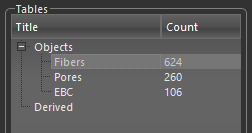
-
Choose Utilities > Analyze and Classify Measurements on the menu bar.
The 'Analyze and Classify Measurements' and 'Choose an Object to Import Scalar Values From' dialogs appear.
-
Choose the object you want to import scalar data from in the Choose an Object to Import Scalar Values From dialog.
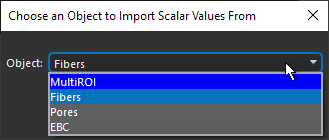
Note Only objects with scalar data will appear in the Choose an Object to Import Scalar Values From dialog. Refer to the topics in the section for information about adding scalar values to multi-ROIs -
Click OK.
The scalar data associated with the selected object are added to a table.
-
Do the following to import scalar data from additional objects:
-
Right-click 'Object' in the Tables tree menu and then choose Add in the pop-up menu, as shown below.
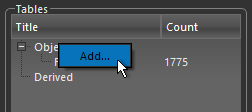
-
Choose the object with the measurements you want to add in the Choose an Object to Import Scalar Values From dialog.
-
Click OK.
The scalar data associated with the selected object are added as a new table.
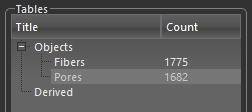
-
